

Published: Updated: Paul Breitenbach 5 min read


Searching for chats in Microsoft Teams is straightforward. But like most Microsoft tools, there is a lot of functionality packed into a single search bar. Today, we are taking a closer look at everything search related in Teams, from finding teammates and conversations to saving messages and using shortcuts that make daily work easier.
For businesses investing in IT modernization and managed IT services, these small workflow improvements matter. Teams search is one of those features that can quietly save time, reduce friction, and help your team move faster across chats, files, and conversations.
Searching for Teammates
Ready to start a chat with a fellow teammate? Luckily, it is easy as pie.
How to find a teammate on Teams:
- Open Microsoft Teams.
- Start typing the person’s name in the top search bar.
- As you type, Teams will suggest results, and you can select the one you want to start or continue a one-to-one chat with that person.
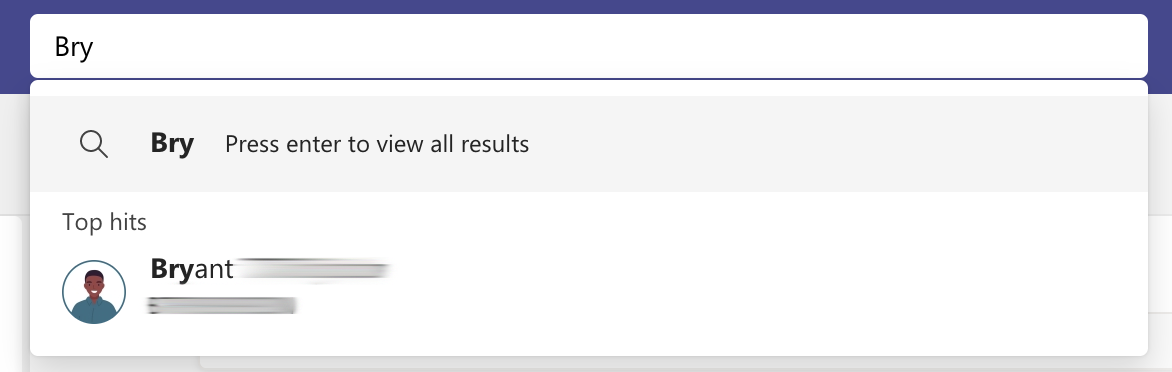
Please note that only people in your address book will appear in search. If you are missing a colleague, make sure they are added in Microsoft Outlook and synced correctly across your Microsoft 365 environment.
Search for Chat Conversations
Looking for a specific chat conversation? It is very similar to what we did above.
How to find a Teams chat conversation:
- Open Microsoft Teams.
- Start typing the names of people in the conversation into the upper search bar.
- You can enter multiple names, and the results will filter to include only group chats with those people.
- You can also type in the chat’s group name.
- When the chat you want appears, select it to open that conversation.
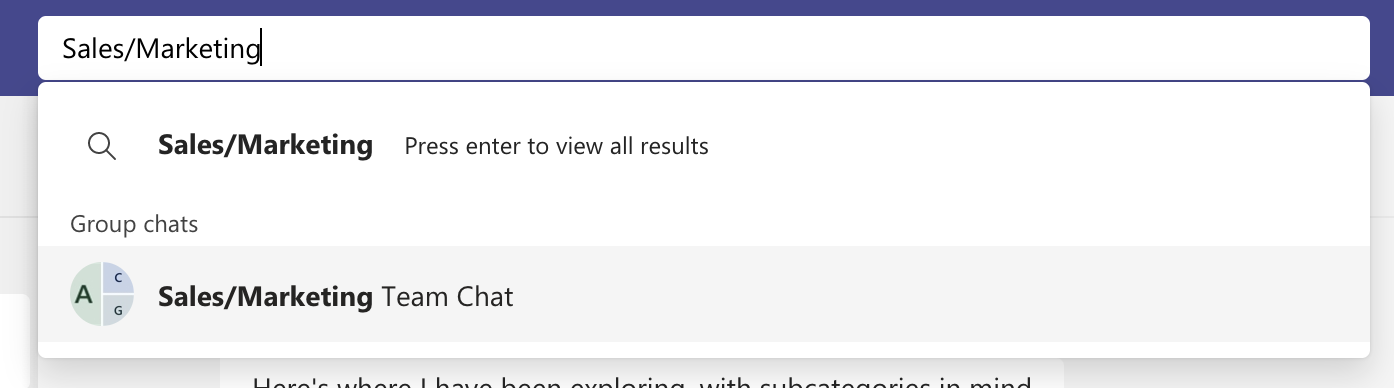
This is especially helpful for teams that manage multiple projects at once and need to move quickly between client, department, or leadership conversations.
Refine Your Search Results
If you use Microsoft Teams every day, it can start to feel a little chaotic. Refined searches can help you sort through chats, files, and people profiles more efficiently.
How to refine your search in Teams:
- Type your search term in the upper search bar.
- Press Enter on your keyboard.
- From there, narrow the results by Messages, People, or Files, and apply the available sort options.
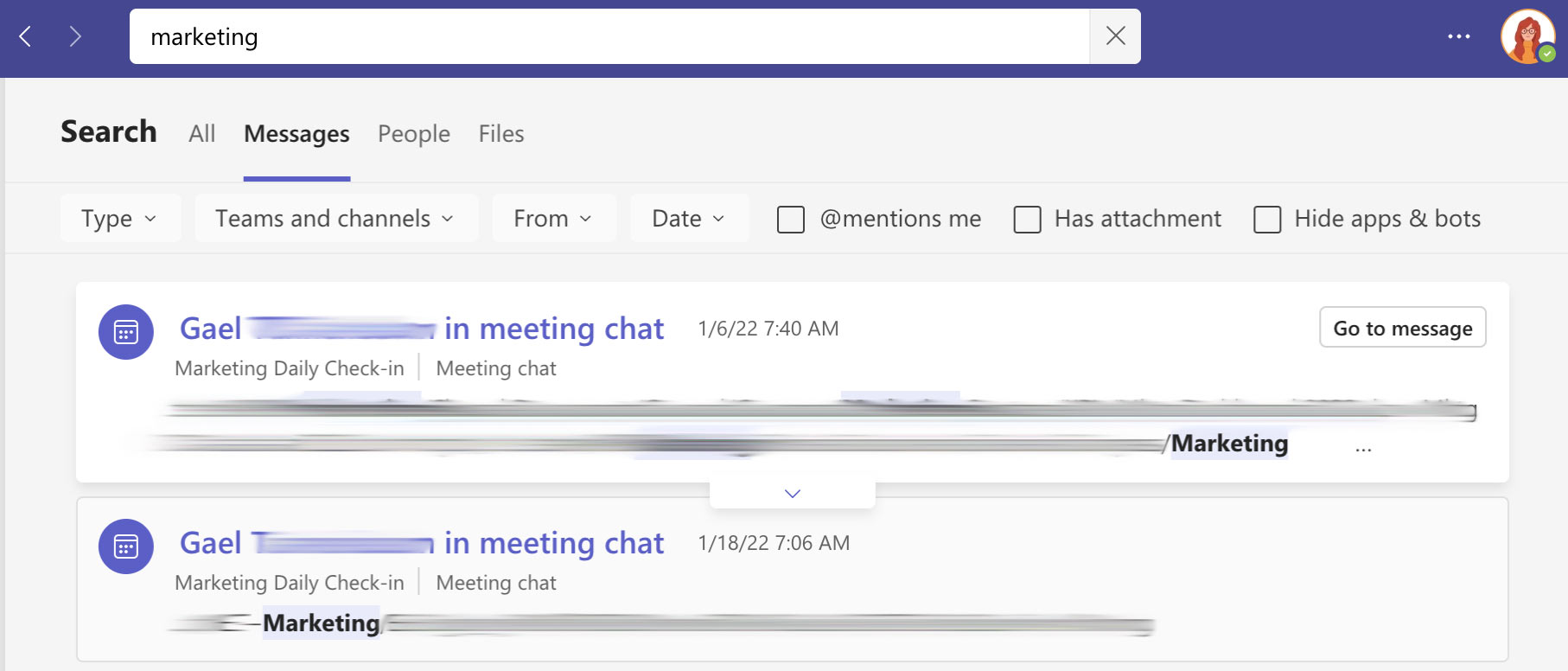
For organizations focused on productivity and modernization, this is where Teams becomes more than a chat tool. It becomes a faster way to surface information without digging through tabs, threads, and shared files like you are on a digital scavenger hunt.
Make Your Conversations More Searchable
Nothing is more frustrating than losing track of an important chat in Teams. Luckily, there is a simple fix. Use hashtags or consistent keywords to make conversations easier to find later.
How to use hashtags in Teams:
- Write your message as you normally would.
- Include a hashtag or keyword tied to the topic, project, or client name.
- Later, enter that hashtag or keyword in the top search bar to pull the message back up.

This works best when your team agrees on a simple naming approach. A little consistency goes a long way when people need answers quickly.
Saving and Viewing Chats
Like the tip above, you can also save messages for easy access later. Saving a message makes it easier to revisit key details, decisions, and next steps without hunting through long conversation threads.
How to save a message in Teams:
- Open Teams.
- Find the message you want to save.
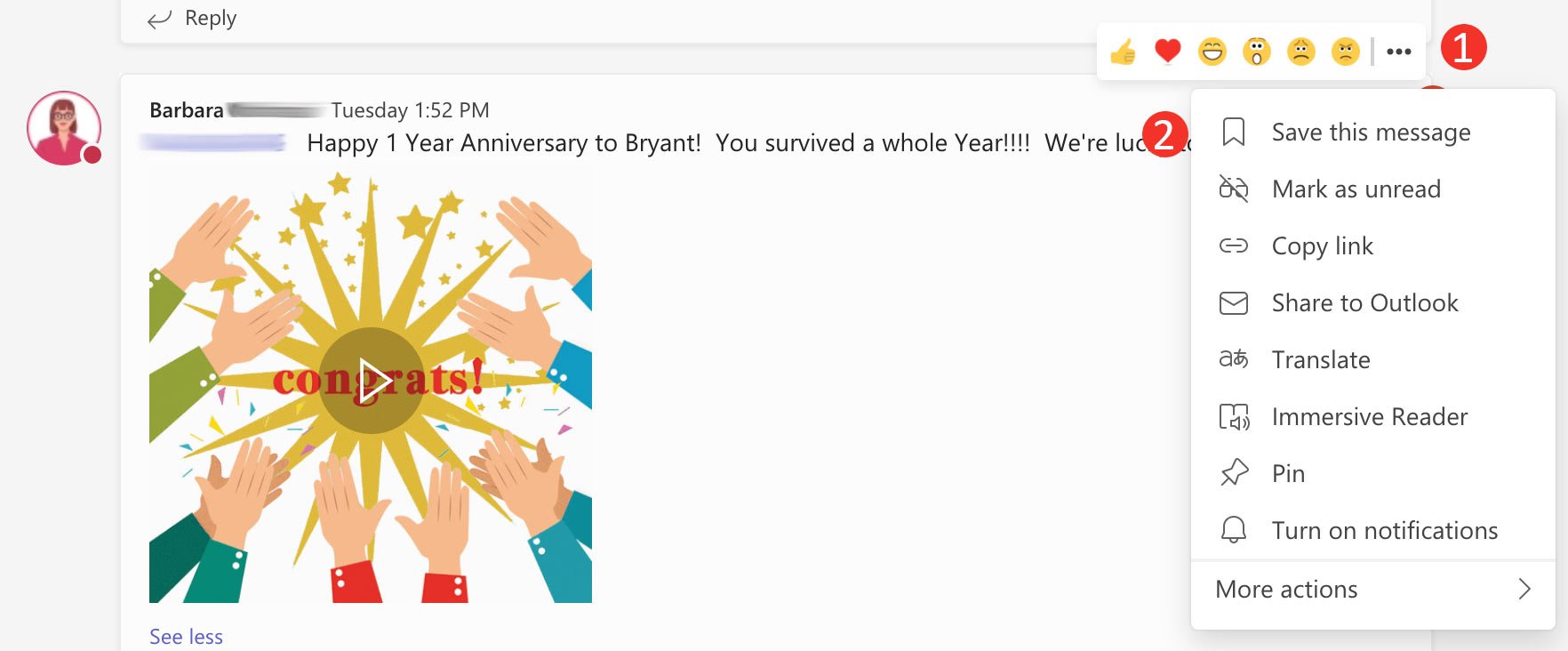
- Hover over the message and click the three dots next to the reactions.
- Select Save this message.
- You will know it worked when the bookmark icon changes and a confirmation appears.
How to view a saved message:
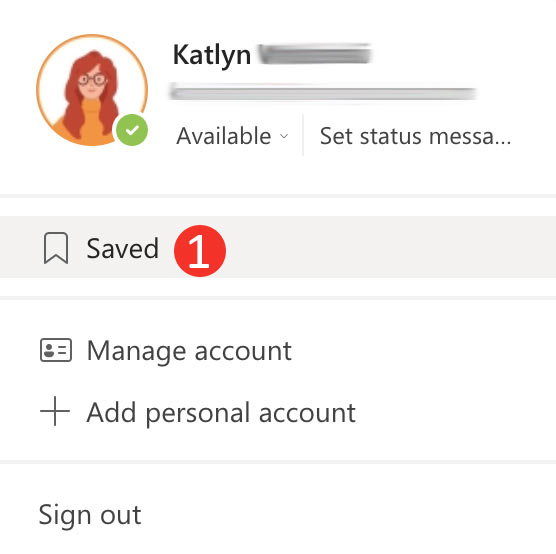
- Click your profile picture or initials.
- Select Saved.
- Review your saved messages from that page.
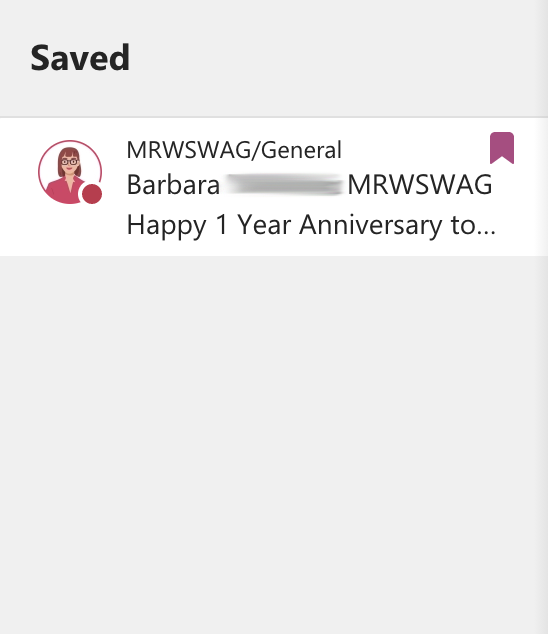
Saved messages are useful for project updates, client notes, approvals, and anything else you know future-you will want without the usual archaeological dig.
Using Slash Commands in the Search Bar
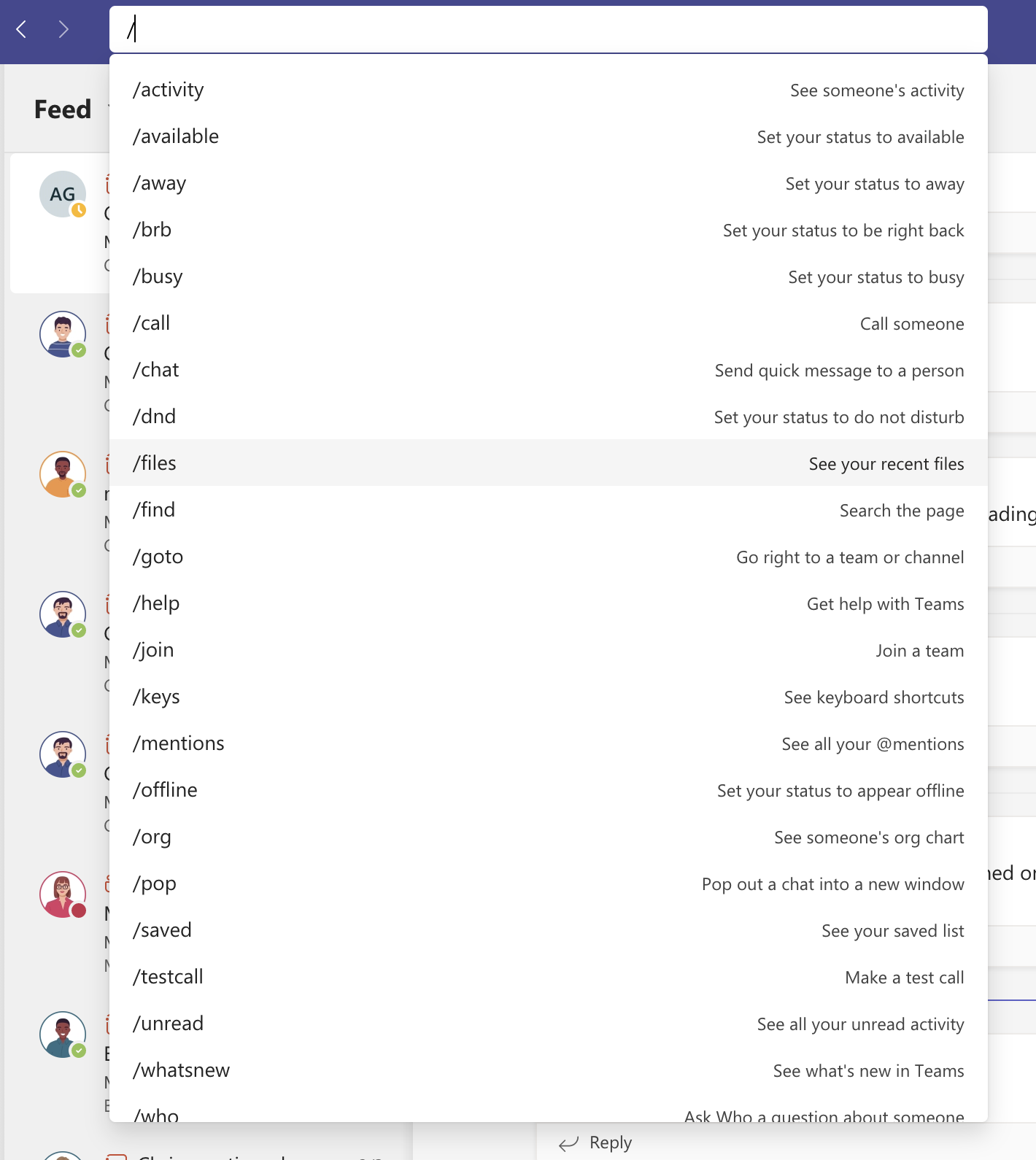
Here is one feature that may have flown under your radar. You can use slash commands in the search bar to improve productivity and move faster through common actions in Teams.
How to use Microsoft Teams slash commands:
- Open Microsoft Teams.
- Type a forward slash in the top search bar to see available commands.
- Select the command you want to use, such as changing your status, starting a chat, or making a call.
Why This Matters for Modern Work
Search may seem like a small feature, but it is a big part of how modern teams stay organized and responsive. When your Microsoft 365 environment is set up well and supported by the right managed IT strategy, tools like Teams work the way they should. That means less wasted time, fewer missed messages, and a smoother experience across your entire business.
If your team is working through cluttered systems, inconsistent setup, or tools that are not fully supporting how people work today, that is often a sign it is time to look at broader IT modernization and managed IT improvements.
And if you want to keep sharpening your Teams skills, you can also check out how to highlight a speaker in Microsoft Teams and how to add an additional person to a scheduled Teams meeting that is already in session.

Paul Breitenbach
With nearly 20 years of experience designing enterprise-grade IT solutions, Paul specializes in supporting organizations that cannot afford downtime. Before becoming our CIO, he served as CIO of WorldwideIT, a Compass company, where he led large-scale infrastructure, cloud, and security initiatives for highly regulated industries.